

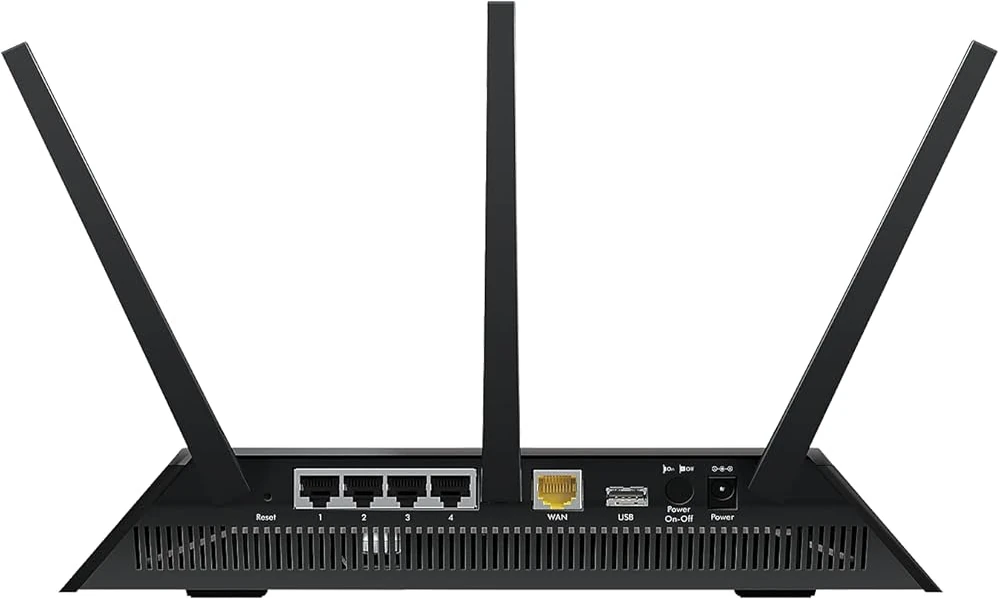
The Nighthawk lineup is Netgear’s flagship router family, built for households that need fast WiFi, low latency for gaming and video calls, and the ability to handle dozens of connected devices without slowdowns. Nighthawk models range from compact dual band units suitable for apartments up to tri band beasts designed for whole house coverage in large homes. Each model ships with a quick start card and a detailed user manual that covers far more than the basics. This guide explains how to use Nighthawk documentation to get the most from any router in the family.
Identifying Your Nighthawk Model
Nighthawk model numbers follow a consistent format. R series numbers indicate standard Nighthawk routers. RAX series indicate WiFi 6 models. RAXE series indicate WiFi 6E models with the 6 GHz band. XR series are the gaming Nighthawk Pro Gaming models. The number after the prefix indicates the speed class and feature tier.
The full model number appears on the bottom of the unit on a label that also lists the default network name, password, and serial number. A documentation library like Netgear router manuals groups Nighthawk manuals by model and year, simplifying the search for the matching document.
Initial Setup
Nighthawk routers can be set up through the Nighthawk app or through the web interface at routerlogin.net. The manual covers both methods. The app handles the basics, including network name and password selection, account creation, and the initial firmware check. The web interface provides access to advanced settings that the app does not expose.
Connect the router to your modem with the included Ethernet cable, plug in the power adapter, and wait for the front panel lights to indicate the router is ready. The manual lists the meaning of each LED state, which is useful for diagnosing connection problems later.
Security reminder: Change the default admin password during initial setup. The default credentials on Netgear routers are well known and leaving them in place is the most common security mistake on home networks.
Wireless Settings
Nighthawk manuals cover wireless settings in detail. SSID naming, password selection, security protocol choice, and channel configuration all get clear explanations. WPA3 support on current models adds modern security, with WPA2 available for compatibility with older devices.
Band steering, which automatically directs devices to the optimal band, gets a clear explanation. For users who prefer separate SSIDs for 2.4 GHz and 5 GHz, the manual covers how to disable band steering and configure each band individually.
The 6 GHz band on RAXE models has its own section. The manual explains the device compatibility requirements, the typical range, and the use cases that benefit most from the new band.
Quality of Service
Dynamic QoS on Nighthawk routers prioritizes traffic for streaming, gaming, and video calls automatically. The manual covers how QoS detects different traffic types and adjusts priorities in real time. For users who want to override the automatic priorities, the manual explains the manual QoS rules.
For gaming households, the Nighthawk Pro Gaming models include geo filtering, which limits multiplayer connections to specific geographic regions for lower latency. The manual covers the setup and the trade offs of geo filtering.
Parental Controls
Smart Parental Controls on Nighthawk routers, available through the Nighthawk app, allow per device time limits, content filtering, and bedtime schedules. The manual covers assigning devices to specific family members and customizing the available time per device.
For households that prefer router based control rather than app based, the manual covers basic access scheduling that does not require the smart controls subscription.
VPN and Remote Access
Many Nighthawk models support OpenVPN server mode, which lets users connect to their home network securely from outside. The manual covers the setup, the certificate generation, and the client configuration on phones and laptops. This feature turns the router into a personal VPN endpoint that protects browsing on public WiFi.
ReadyShare features, available on models with USB ports, let users connect a USB drive to the router and access files remotely. The manual covers media sharing, network attached storage configuration, and access permissions.
Port Forwarding and Gaming
Gaming consoles and self hosted services often need specific ports forwarded through the router. The manual covers port forwarding setup with diagrams. The Nighthawk Pro Gaming models add additional gaming specific port handling that prioritizes specific game traffic over standard internet usage.
UPnP, available on most Nighthawk models, automates port forwarding for games and applications that support it. The manual explains the security trade offs and how to disable UPnP for users who prefer manual control.
Firmware Updates and Armor Security
Netgear releases firmware updates regularly for Nighthawk routers. The manual explains how to check for updates through the app or the web interface and how to enable automatic firmware installation.
Netgear Armor, available as a subscription on supported Nighthawk models, adds network level threat protection that scans traffic for malware and unauthorized access attempts. The manual covers activation, configuration, and the alerts the service generates.
Documentation for Older Nighthawk Models
The Nighthawk line has grown across many years. Older models such as the original R7000 remain in service in many homes. Independent archives such as manualmachine.com keep manuals for legacy Nighthawk routers available for download, so a decade old Nighthawk still has its full configuration guide accessible.
Final Thoughts
Nighthawk router manuals turn home networking into a confident process. Setup proceeds cleanly, wireless settings get optimized for the specific home, QoS keeps important traffic responsive, security features get enabled correctly, and the maintenance routine of firmware updates keeps the router protected against new threats. Find your exact Nighthawk model in a documentation library, retrieve the matching guide, and refer back as needs change across the years a router stays in service.